Why Is My Wi-Fi Connected but Some Websites Won’t Load on Windows 11? 10 Proven Fixes

SEO Title: Wi-Fi Connected but Some Websites Won’t Load? 10 Fixes
Meta Description: Wi-Fi connected but some websites won’t load on Windows 11? Learn 10 practical solutions to fix DNS errors, browser issues, VPN problems and network failures.
Focus Keyword: Wi-Fi connected but some websites won’t load
Secondary Keywords: Websites not loading but internet works, Windows 11 internet problems, DNS problems Windows 11, certain websites won’t open, Chrome websites not loading, ERR_CONNECTION_RESET.
Suggested URL: wifi-connected-but-some-websites-wont-load
Introduction
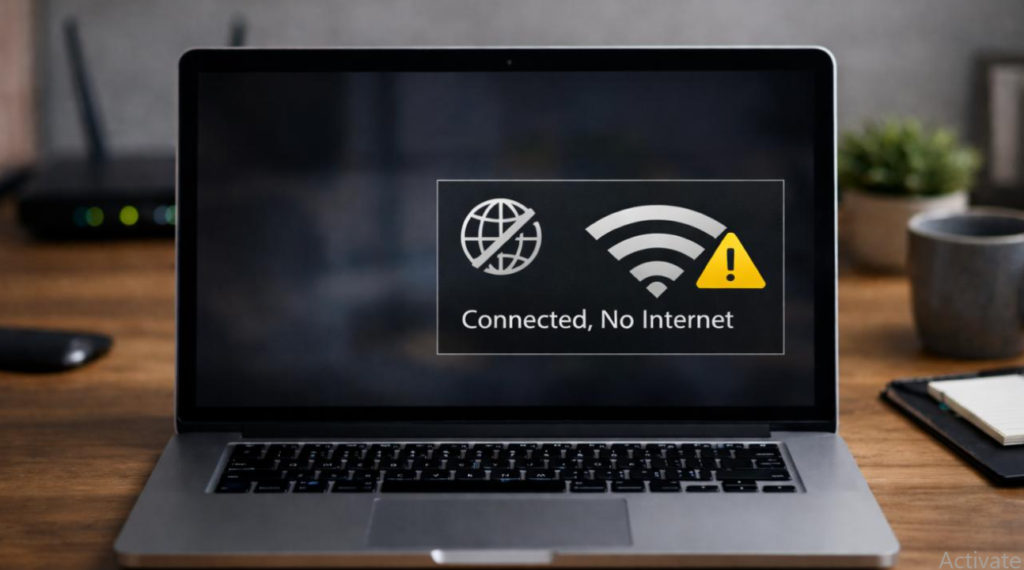
Imagine connecting your Windows 11 computer to Wi-Fi and seeing the connected symbol, but your favourite websites refuse to open. Google might work perfectly, YouTube may play videos without interruption, and other applications may remain connected. However, when you visit a particular website, your browser displays an error or continues loading without showing the page.
This situation is more common than many computer users realise. The problem does not always mean your internet connection is completely broken. Incorrect DNS settings, browser cache, VPN configurations, firewall restrictions and temporary website server problems can prevent individual websites from opening.
If your Wi-Fi is connected but some websites won’t load, you do not necessarily need to purchase a new router or contact your internet provider immediately. Several troubleshooting methods can help identify the actual cause and restore normal browsing.If your Wi-Fi connected but some websites won’t load on Windows 11, you may be experiencing a DNS, browser or network configuration problem.
In this guide, you will discover 10 practical ways to diagnose and fix website loading problems on Windows 11. Each solution includes straightforward instructions, explanations and useful troubleshooting commands.Understanding why Wi-Fi connected but some websites won’t load can help you choose the right solution without changing unnecessary network settings.
Why Is My Wi-Fi Connected but Some Websites Won’t Load?
A Wi-Fi connection and successful website access are two different things. Your computer may communicate with your wireless router correctly while experiencing difficulties reaching particular website servers.
When you enter a website address into your browser, your computer must identify the website’s IP address, establish a connection and exchange information with the website server. If something interrupts this process, the page may fail to load.
Here are some common reasons this happens:
- DNS problems: Your computer cannot correctly translate a website address into its IP address.
- Browser cache issues: Stored website information becomes outdated or corrupted.
- VPN restrictions: Your VPN connection may interfere with certain website addresses.
- Proxy configuration: Incorrect proxy settings can prevent normal internet access.
- Firewall restrictions: Security software may block legitimate website connections.
- Router problems: Temporary network interruptions can affect specific connections.
- Browser extensions: Certain extensions may interfere with website scripts and requests.
- Website server issues: The website itself may be temporarily unavailable.
Understanding these causes is important because applying unnecessary network changes can create additional problems.
How to Check Whether the Problem Is Your Wi-Fi or Website
Before changing your computer’s settings, perform a few basic checks. These tests can help determine whether the issue comes from your browser, computer, router or the website itself.
First, open several familiar websites, such as Google, YouTube and Microsoft. Then try visiting the website that is not working. If other websites open normally, your internet connection is probably functioning, although a website-specific network issue may still exist.
Next, open the affected website in another browser. For example, if you normally use Google Chrome, try Microsoft Edge.
You can also test the same website using another device connected to your Wi-Fi network.
| Test result | Possible reason |
|---|---|
| Website works in another browser | Browser settings or extensions |
| Website works using mobile data | Router or network configuration |
| Website fails on every device | Website server or network issue |
| Only one computer has the problem | Windows configuration |
| Multiple websites fail together | DNS or connectivity problem |
These simple checks can save time and help you select the correct troubleshooting method.
10 Ways to Fix Wi-Fi Connected but Some Websites Won’t Load
Restart Your Router and Computer
Restarting your router is one of the easiest ways to resolve temporary network problems. Wireless routers operate continuously, and occasional connection interruptions can affect how connected devices communicate with websites.
To restart your router correctly, switch it off and disconnect its power cable. Wait approximately 30 seconds before reconnecting it. Allow the router a few minutes to establish its internet connection.
After the router reconnects, restart your Windows 11 computer and connect to your Wi-Fi network again.
Open your browser and visit the affected website.
If the website loads normally, a temporary router or connection problem may have caused the issue. If nothing changes, continue with the next solution.
For additional troubleshooting instructions, see Microsoft’s official guide to fixing Wi-Fi connection issues in Windows.
Clear the DNS Cache in Windows 11
DNS stands for Domain Name System. It helps your computer locate websites by translating domain names into IP addresses.
Windows temporarily stores DNS information to make future connections faster. However, outdated or incorrect cached information can sometimes cause website access problems.
Clearing the DNS cache forces Windows to request fresh DNS information when necessary. If Wi-Fi connected but some websites won’t load because of outdated DNS information, clearing the resolver cache may help restore normal access.
Follow these instructions:
- Open the Windows Start menu.
- Search for Command Prompt.
- Right-click Command Prompt.
- Select Run as administrator.
- Enter the following command:
ipconfig /flushdns
- Press Enter.
- Wait for the confirmation message.
- Close Command Prompt and restart your browser.
This command clears the Windows DNS resolver cache. It does not delete your personal files, browser bookmarks or saved passwords.
If outdated DNS information was causing the problem, the affected website may now open successfully.
Change Your DNS Server Settings
Your internet provider usually assigns DNS servers automatically. Although this configuration works for most users, a DNS server may occasionally respond slowly or fail to resolve particular website addresses.
Testing another reputable DNS provider can help determine whether your current DNS service is responsible.
Two commonly used public DNS services are Google Public DNS and Cloudflare DNS.
| Provider | Preferred DNS | Alternate DNS |
|---|---|---|
| 8.8.8.8 | 8.8.4.4 | |
| Cloudflare | 1.1.1.1 | 1.0.0.1 |
To change your DNS settings:
- Open Windows Settings.
- Select Network & internet.
- Select Wi-Fi.
- Open your connected network properties.
- Find DNS server assignment.
- Select Edit.
- Choose Manual.
- Enable IPv4.
- Enter your preferred and alternate DNS addresses.
- Save the changes.
Open your browser and test the affected website again.
If changing DNS does not improve the connection, return to Automatic (DHCP), unless you have another reason to keep your selected DNS provider.
You can learn more about public DNS services through Cloudflare’s official 1.1.1.1 DNS documentation.
Open the Website in Incognito Mode
Browser cookies, stored website information and extensions can sometimes interfere with page loading.
Incognito mode provides a useful way to check whether your normal browser profile is responsible.
In Google Chrome:
- Open Chrome.
- Select the three-dot menu.
- Choose New Incognito Window.
- Enter the affected website address.
- Check whether the page opens.
If the website works in Incognito mode but not in your regular browser, investigate your extensions, cookies and browser settings.
Remember that Incognito mode does not bypass every network restriction. It mainly helps identify browser-related problems.
For more help, consult Google Chrome’s official connection and loading error guide.
Disable Problematic Browser Extensions
Browser extensions provide useful features such as advertisement blocking, password management, privacy protection and productivity tools. However, certain extensions can interfere with website scripts, cookies or network requests.
To test extensions in Chrome:
- Enter
chrome://extensions/in the address bar. - Press Enter.
- Temporarily disable your extensions.
- Restart Chrome.
- Visit the affected website again.
If the website starts working, enable extensions individually until you identify the one causing the problem.
You can then update, replace or remove the problematic extension. Avoid permanently disabling security-related extensions without understanding their purpose.
Clear Browser Cache and Cookies
Browsers save temporary website files to improve loading speed. These files include images, scripts and other information that websites use when displaying pages.
Sometimes, outdated or corrupted cached information prevents a website from loading correctly.
In Google Chrome, press Ctrl + Shift + Delete to open the browsing data settings.
Select an appropriate time range and choose Cached images and files. You can also select Cookies and other site data if necessary.
Be aware that clearing cookies may sign you out of websites and remove some saved preferences. If you want to preserve your login sessions, begin by clearing cached files only.
After clearing the selected data, restart your browser and test the affected website.
For detailed instructions, visit Google’s official guide to clearing browsing data.
Check VPN and Proxy Settings
VPN applications and proxy servers change how your computer routes internet traffic. Although these services can provide useful privacy and network features, incorrect configurations may prevent access to particular websites.
If you use a VPN, disconnect it temporarily and test the affected website again. If the page opens, investigate your VPN server location, connection settings or provider.
You should also review your Windows proxy configuration.
Follow these steps:
- Open Windows Settings.
- Select Network & internet.
- Choose Proxy.
- Review automatic and manual proxy settings.
- Check whether an unexpected manual proxy configuration is enabled.
Do not disable a proxy required by your workplace, school or organisation. If your computer is managed by an administrator, ask for assistance before making changes.
You can also review Microsoft’s official instructions for using a proxy server in Windows.
Check Firewall and Antivirus Restrictions
Windows Firewall and antivirus applications protect your computer against suspicious connections and potentially harmful websites.Choosing reliable cybersecurity tools can help protect computers against suspicious connections and online threats
However, security software can occasionally block legitimate website connections because of incorrect filtering rules, false detections or application restrictions.
Open Windows Security and select Firewall & network protection. Review your active network profile and check whether any relevant application or connection has been blocked.
If you use third-party antivirus software, review its protection history and website filtering settings.
Do not turn off your firewall permanently or allow unfamiliar websites simply to make them load. Always verify the website’s safety before changing security settings.
Use Command Prompt to Diagnose Network Problems
If basic troubleshooting does not solve the problem, Windows includes several useful diagnostic commands.When Wi-Fi connected but some websites won’t load after changing browser settings, check whether your VPN or firewall is affecting the connection
These commands can help you understand whether DNS resolution or basic network connectivity is working.
Check DNS resolution
Open Command Prompt and enter:
nslookup example.com
Replace example.com with the address of the website that is not loading.
If the lookup fails, DNS resolution may be involved. If an IP address appears, the domain was resolved, although this does not prove the website server is reachable.
Check basic internet connectivity
Enter:
ping 1.1.1.1
This tests whether your computer receives responses from Cloudflare’s public DNS IP address. Some networks block ping requests, so no response does not automatically mean the internet connection is broken.
Refresh your IP configuration
You can also try:
ipconfig /release
Then enter:
ipconfig /renew
These commands release and request a new IP configuration from your network’s DHCP server. Your connection may temporarily disconnect while this process takes place.
Use these commands carefully, especially on workplace or school computers with specialised network settings.
Reset Network Settings in Windows 11
If the previous methods have failed, Windows 11 offers a Network reset feature that reinstalls network adapters and restores many network settings to their defaults.
This should be one of your final troubleshooting steps because it can remove saved network configurations and affect VPN or specialised networking applications.
To perform a network reset:
- Open Windows Settings.
- Select Network & internet.
- Choose Advanced network settings.
- Find Network reset.
- Select Reset now.
- Confirm your choice.
- Restart your computer.
- Reconnect to your Wi-Fi network.
Make sure you know your Wi-Fi password before proceeding. You may also need to reinstall or reconfigure certain networking applications afterwards.
Microsoft also explains the consequences of network reset in its official Windows Wi-Fi troubleshooting guide.
What Do Common Website Loading Errors Mean?
When a website fails to open, your browser may display an error message. Understanding these messages can help you identify where the connection problem might be occurring.
| Browser error | General meaning |
|---|---|
| ERR_NAME_NOT_RESOLVED | The domain name could not be resolved |
| ERR_CONNECTION_RESET | The connection was interrupted |
| ERR_CONNECTION_TIMED_OUT | The connection took too long |
| ERR_CONNECTION_REFUSED | The destination refused the connection |
| ERR_INTERNET_DISCONNECTED | The browser detected no internet connection |
| ERR_NETWORK_CHANGED | The network changed during the connection |
These messages do not always identify the exact cause. For example, ERR_CONNECTION_RESET can involve network interruptions, VPN configurations, security software or problems on the server side.
Use the error message as a starting point for further diagnosis rather than assuming every problem requires the same solution.
How to Prevent Website Loading Problems in the Future
Although you cannot prevent every website outage, maintaining your computer and network can reduce avoidable connection problems.
Keep Windows 11 and your browser updated. Remove extensions you no longer use, avoid installing unknown networking applications and maintain reliable antivirus protection.
If you regularly use a VPN, keep its software updated and review its connection settings when websites become inaccessible.
It is also useful to record which websites and applications were affected when a connection problem occurred. This information can help you identify recurring issues and provide more useful details when contacting your internet provider.
When Should You Contact Your Internet Service Provider?
If multiple devices connected to the same Wi-Fi network cannot access particular websites, contact your internet service provider for assistance.
Explain which websites are affected, when the issue started and whether the same websites work through mobile data or another internet connection.
If only one website is unavailable across different networks, its owner or hosting provider may need to investigate its server, DNS configuration or security settings.
Avoid repeatedly resetting your computer when the problem is clearly outside your home network. Identifying where the connection fails is often more useful than trying every available troubleshooting option.
Conclusion
A working Wi-Fi connection does not guarantee that every website will load correctly. DNS problems, browser extensions, cached files, VPN settings, firewall restrictions and temporary server issues can all prevent access to individual websites.
If your Wi-Fi is connected but some websites won’t load on Windows 11, begin by checking other websites and testing another browser. Then try clearing the DNS cache, reviewing your DNS configuration and checking browser extensions or proxy settings.
Keep network resets as a final option rather than your first response. By following a systematic troubleshooting process, you can identify the likely cause, avoid unnecessary changes and restore access to the websites you need.
Frequently Asked Questions
Why is my Wi-Fi connected but some websites won’t open?
This can happen because of DNS problems, browser cache, VPN settings, security restrictions or temporary website server issues.
Why do Google and YouTube work but other websites do not?
Different websites use different servers and network routes. A DNS problem, filtering rule or website-specific connection issue may affect certain domains.
Can changing DNS fix websites that are not loading?
Yes. Changing to a reliable public DNS provider can help when your existing DNS service cannot resolve website addresses correctly.
Does clearing DNS cache delete saved passwords?
No. The Windows ipconfig /flushdns command clears the DNS resolver cache without deleting browser passwords, bookmarks or personal files.
Should I reset network settings if websites still do not load?
Network reset can help with persistent Windows network configuration problems, but try simpler troubleshooting methods first because resetting can affect saved network settings and VPN software.